
App · Android · Google Play: Parent Lock: Parental Control
PARENT LOCK — parental control for your child’s Android phone
Worried about how much time your child spends on a screen? PARENT LOCK helps you set clear rules for phone use, decide which apps are allowed and make room for rest.
Android app. There is no iPhone version yet.
Screenshots
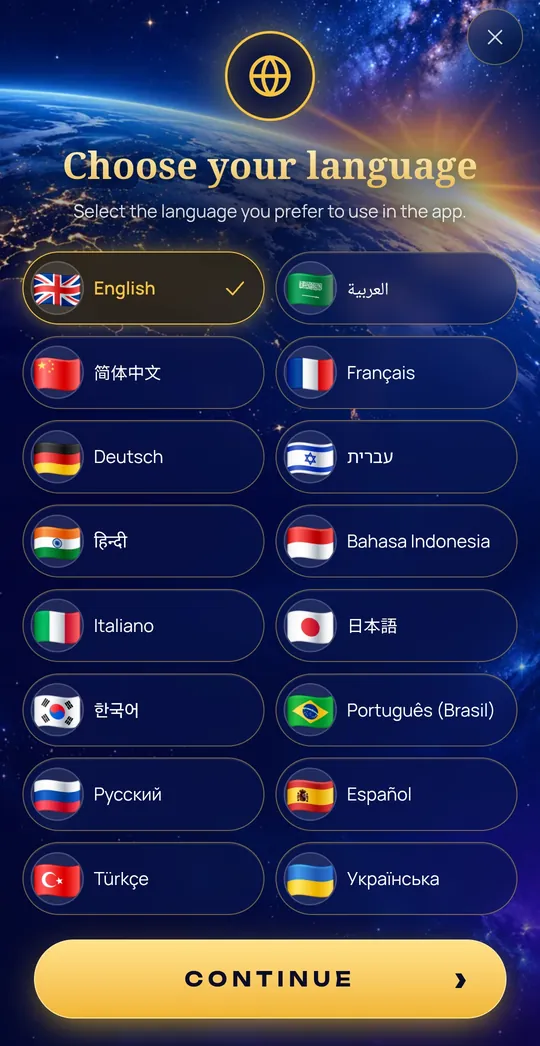
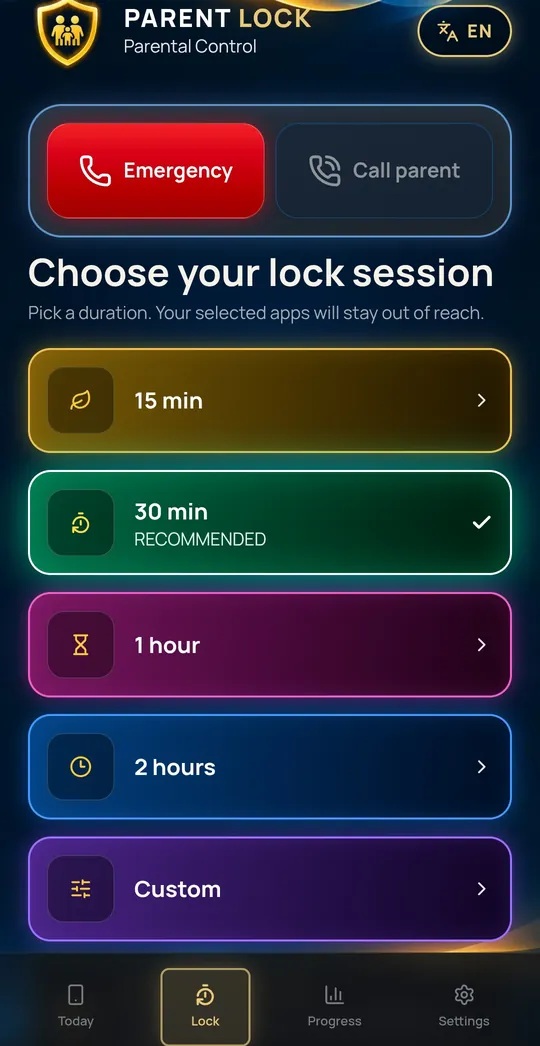
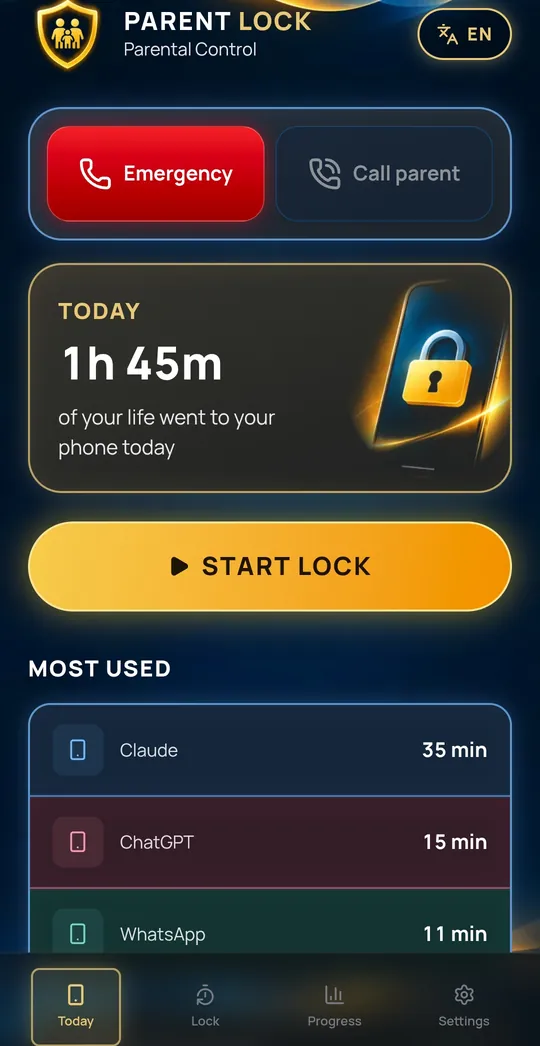
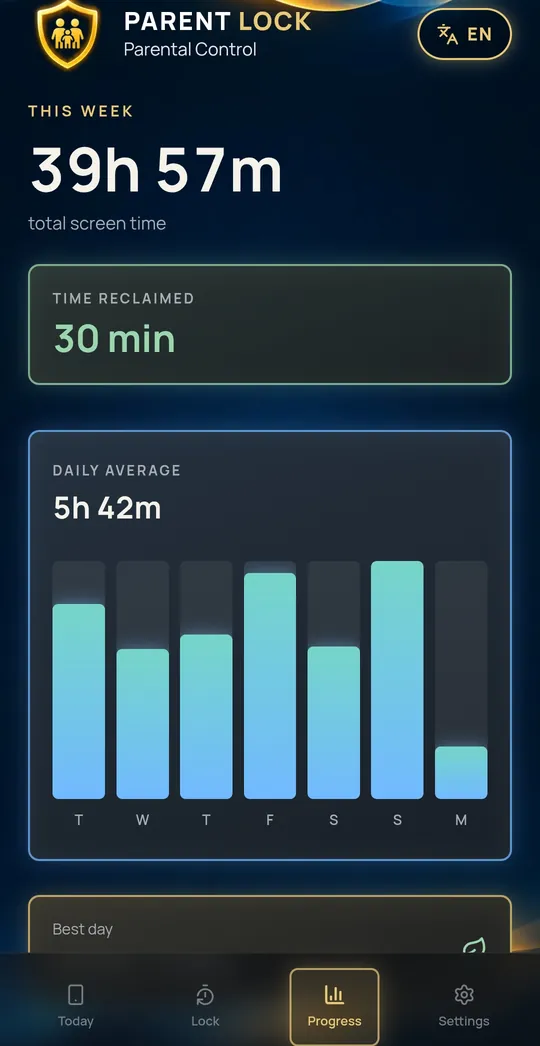
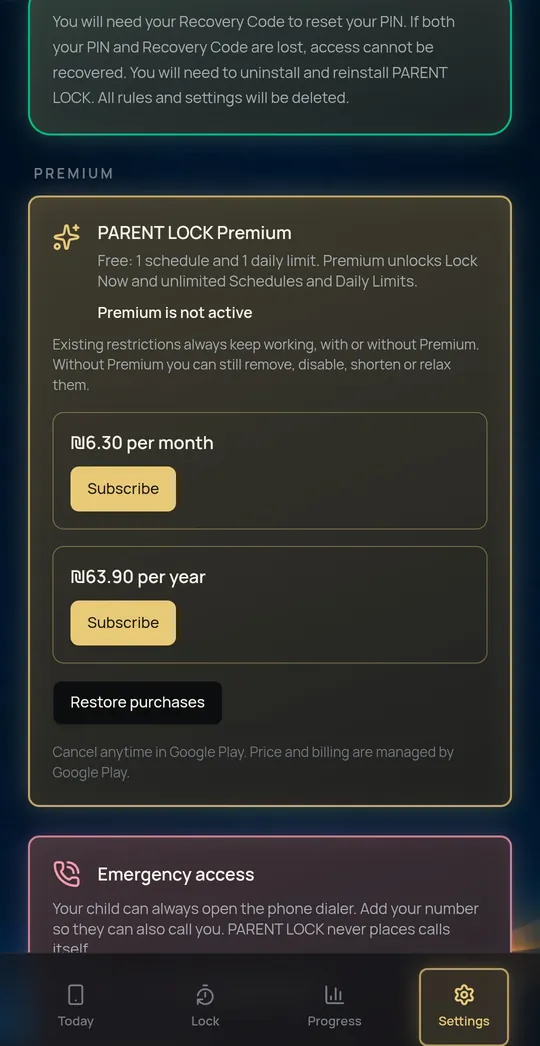
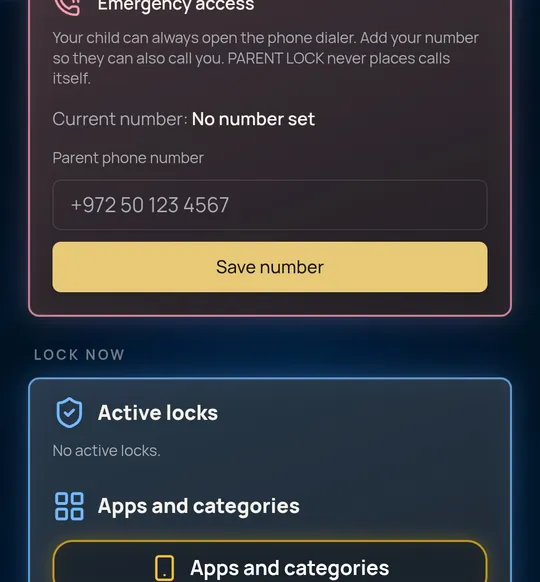
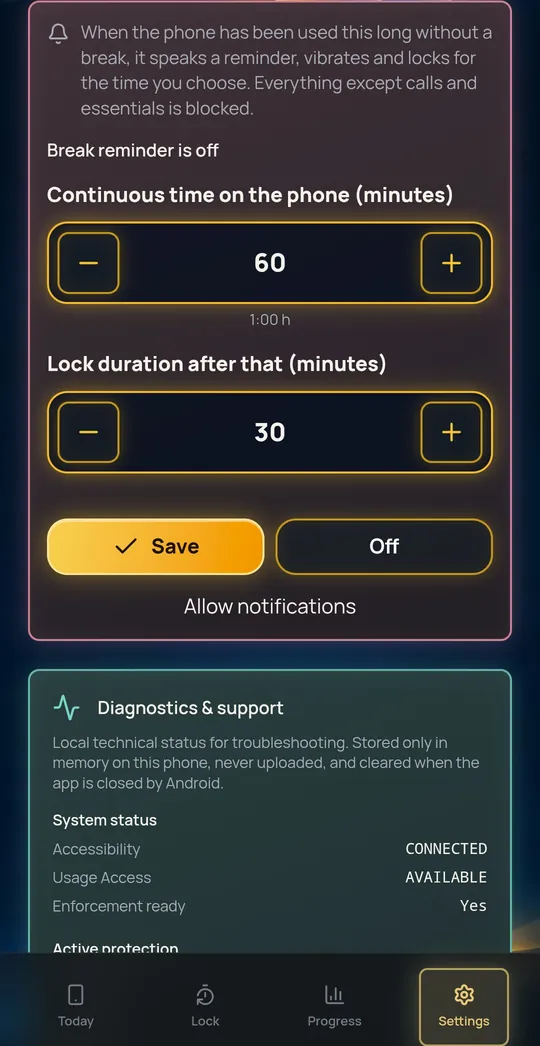
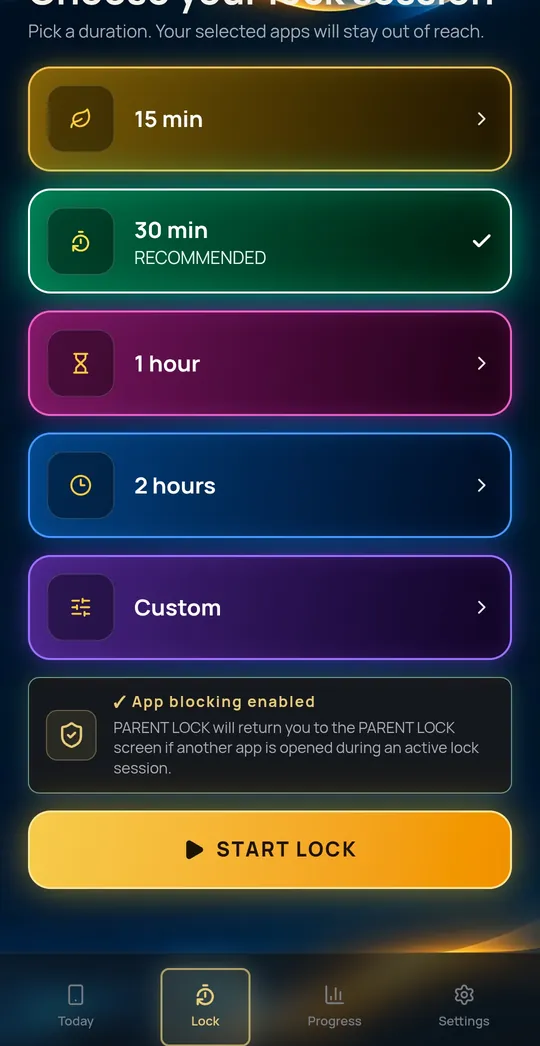
What a parental control app for Android should do
A smartphone gives a child a lot: games, videos, chats, schoolwork and a constant stream of notifications. Without any rules it is easy for a few minutes to turn into a whole evening, and a family conversation about it can quickly become an argument.
PARENT LOCK is built for parents who want simple, predictable rules instead of daily battles. The idea is not to take the phone away, but to agree on how it is used and let the app help you keep that agreement.
Key features of PARENT LOCK
The app focuses on three things parents ask for most often:
- Rules for phone use — set clear boundaries for how your child uses the phone.
- Allowed apps — choose which apps your child can open and manage access to the rest.
- Rest time — set time when the phone takes a back seat, so there is room for sleep, homework, walks and family time.
- Safer digital habits — consistent rules help a child get used to a healthier rhythm with the screen.
Who it is for
PARENT LOCK is for parents of children who already have their own Android phone or use a family device. It suits families who want to limit screen time for kids gently, step by step, and who prefer a calm, clear setup to complicated dashboards.
It is also useful when a child gets a first phone: it is much easier to agree on rules at the very beginning than to change habits later.
How to set up parental controls on Android with PARENT LOCK
- Install PARENT LOCK from Google Play on the phone your child uses.
- Talk with your child first: explain which rules you are introducing and why.
- Choose the apps that are allowed and decide how the rest should be handled.
- Set rest time that fits your family’s day — for example, evenings before sleep or homework hours.
- Review the rules from time to time and adjust them as your child grows.
A few tips for limiting screen time
Rules work best when they are clear and the same every day. Explain them in advance, keep your word and be a good example: children notice how adults use their phones too.
If you want to cut down your own phone distractions, try PHONE DETOX, and read our guide to parental controls on Android for more ideas.
Why I created PARENT LOCK
I am Nikolay Shcherbakov. For more than 20 years I have practiced meditation, attention techniques and self-observation, and I have seen how strongly a phone can pull attention away from real life. My apps are meant to turn useful ideas into simple everyday steps. PARENT LOCK grew out of the same principle: small, consistent rules help a child keep a healthier balance with the screen.
Questions and answers
How do I set up parental controls on an Android phone?
Install PARENT LOCK from Google Play on your child’s phone, choose the allowed apps and set rest time. Then explain the rules to your child and adjust them over time.
Can I choose which apps my child can use?
Yes. PARENT LOCK lets you choose the allowed apps and manage access to apps on your child’s phone.
How can I limit my child’s screen time?
Set rest time in PARENT LOCK for the hours when the phone should not be in use, such as before sleep or during homework. Consistent rules work better than occasional bans.
Which devices does PARENT LOCK work on?
PARENT LOCK is an Android app available on Google Play.
At what age should I start using parental controls?
The easiest moment is when a child gets a first phone, because rules agreed from the start are simpler to keep. You can relax them as your child grows.